The Whawit VS Code extension brings AI-powered observability directly into your editor. Query logs, analyze incidents, and get context-aware assistance without switching between tools.
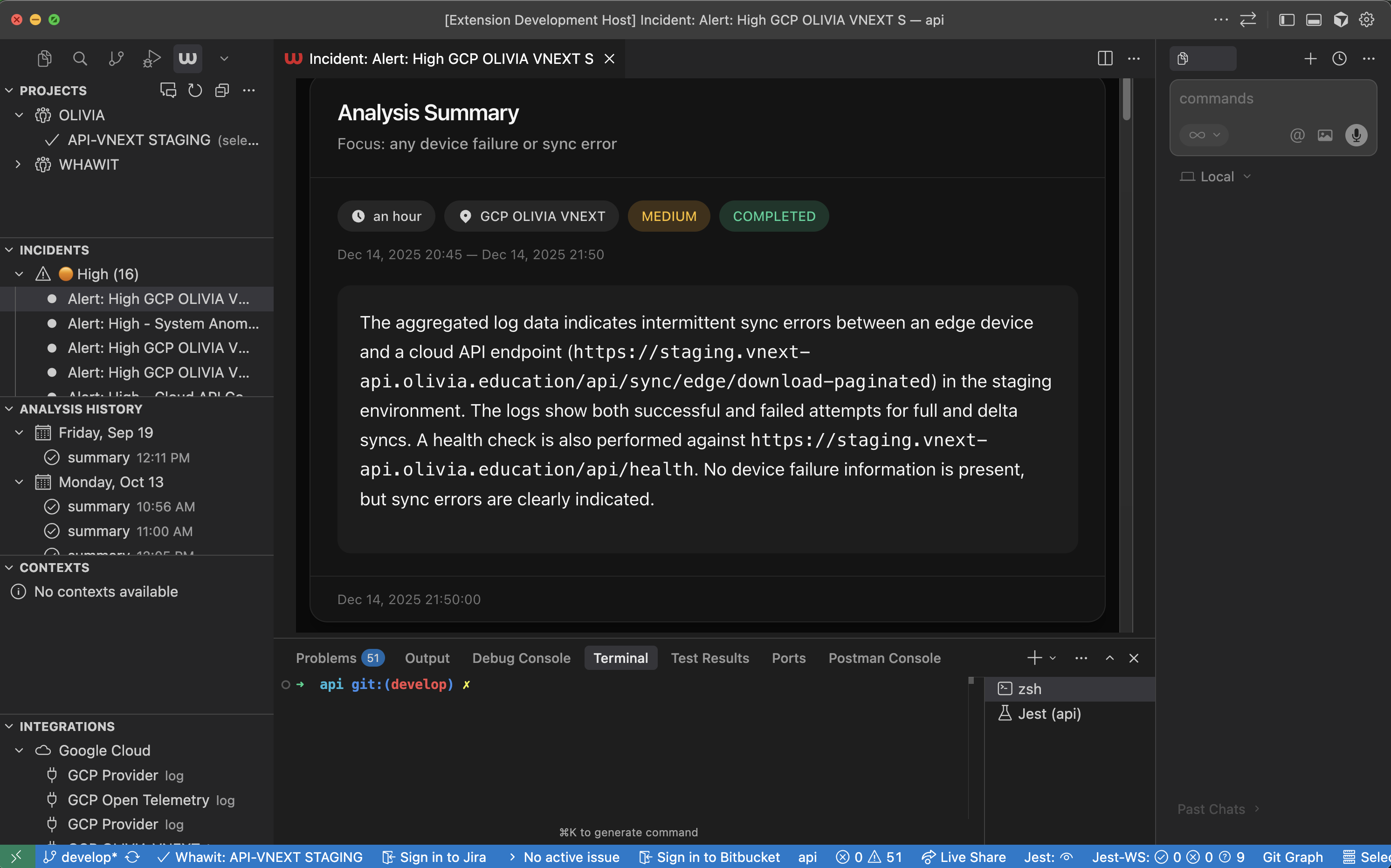
Whawit VS Code extension sidebar

Whawit extension sidebar showing projects, incidents, and analysis history

Features

Radar Chat

Ask natural language questions about your logs, metrics, and system health directly in the editor.

Context Search

Search your project’s knowledge base for architecture documentation, runbooks, and technical context.

Auto-detect Projects

Automatically matches your workspace to Whawit projects based on Git remotes.

Incident Management

View and manage incidents from connected observability providers without leaving your editor.

Prerequisites

  • VS Code 1.90.0 or later (also compatible with Cursor, Windsurf, and Kiro)
  • A Whawit account (sign up at whawit.ai)
  • At least one project configured in Whawit with connected observability providers

Installation

  1. Open VS Code
  2. Go to Extensions (Ctrl+Shift+X or Cmd+Shift+X)
  3. Search for Whawit
  4. Click Install
The Whawit icon appears in your Activity Bar after installation.

Getting Started

1

Login to Whawit

Click the Whawit icon in the Activity Bar, then click Login to Whawit.The extension uses Auth0 for authentication. A browser window opens for you to complete the sign-in flow.
Your credentials are stored securely in VS Code’s secret storage and persist across sessions.
2

Select or auto-detect your project

If whawit.autoDetectProject is enabled (default), the extension automatically matches your workspace to a Whawit project based on Git remotes.To manually select a project:
  1. Open the Command Palette (Ctrl+Shift+P or Cmd+Shift+P)
  2. Run Whawit: Select Project
  3. Choose from the list of available projects
The status bar shows your current project name when connected.
3

Open Radar Chat

Run Whawit: Open Radar Chat from the Command Palette or click the chat icon in the Projects view.
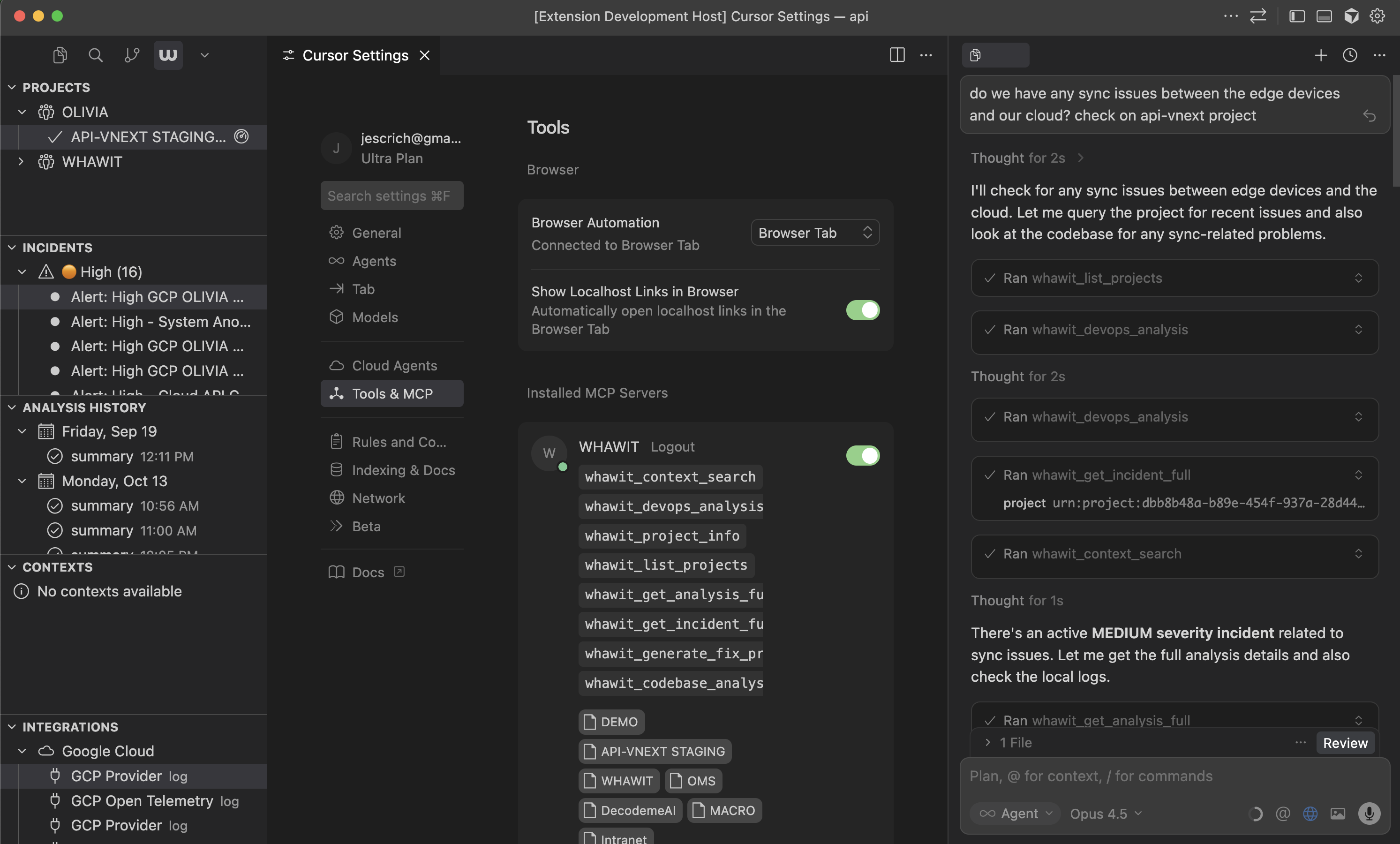
Whawit Radar Chat

Radar Chat panel for querying logs and metrics

Ask questions like:
  • “Show me errors from the last 15 minutes”
  • “What’s causing high latency in the checkout service?”
  • “Are there any Redis connection issues?”

Activity Bar Views

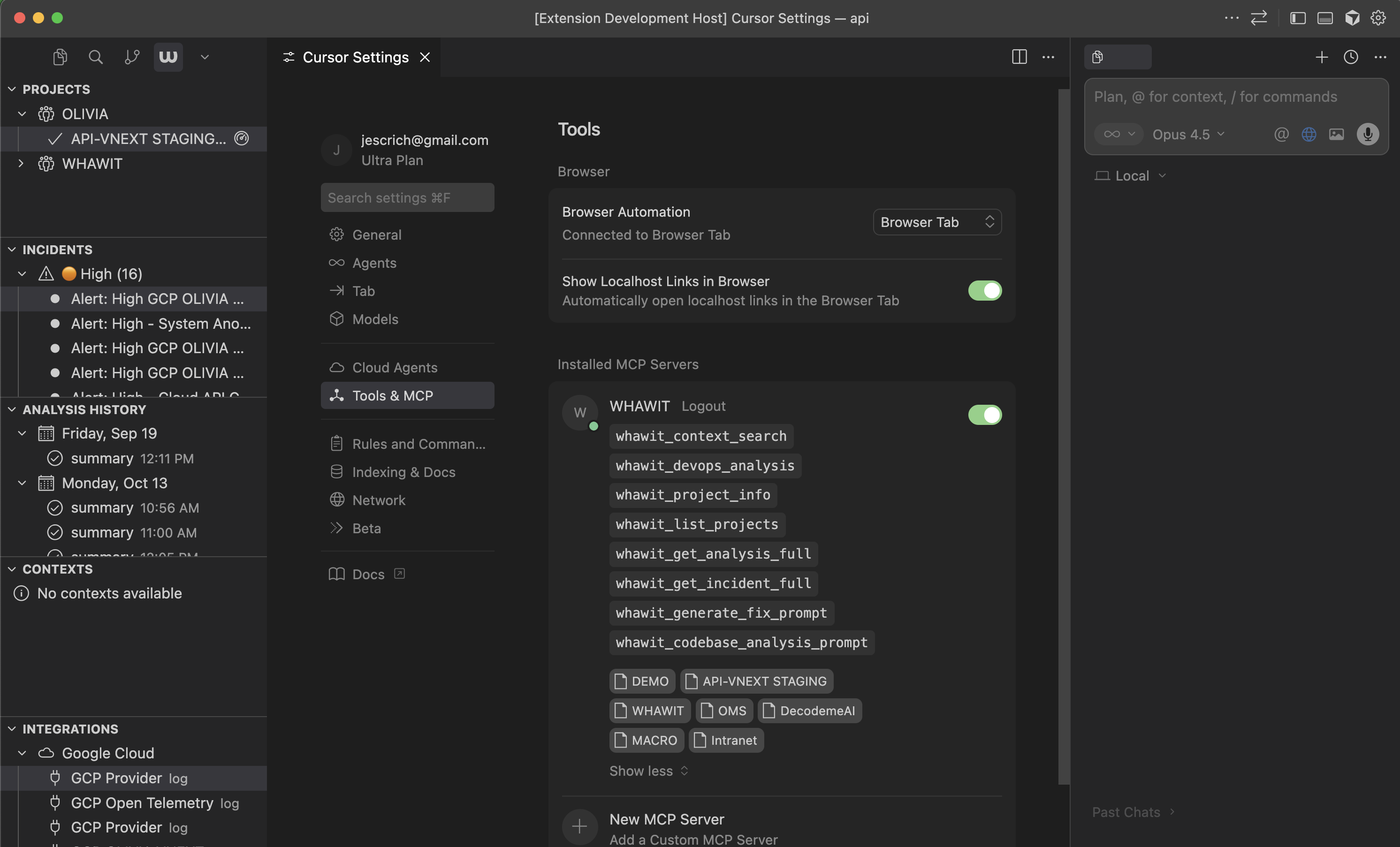
The Whawit sidebar contains five views for managing your observability data:
Whawit Activity Bar views

Activity Bar views for projects, incidents, history, contexts, and integrations

Projects

Lists all Whawit projects you have access to. Click a project to select it as your working context. The currently matched project (based on your Git remote) is highlighted.

Incidents

Shows open incidents for the selected project. Each incident displays:
  • Severity level (critical, high, medium, low)
  • Summary and service name
  • Current status
  • Creation timestamp
Right-click an incident to send it to GitHub Copilot for analysis.

Analysis History

Displays recent DevOps analyses run on your project. Each entry shows:
  • Analysis title and status
  • Severity assessment
  • Timestamp
Click an entry to open the full analysis in an embedded browser panel.
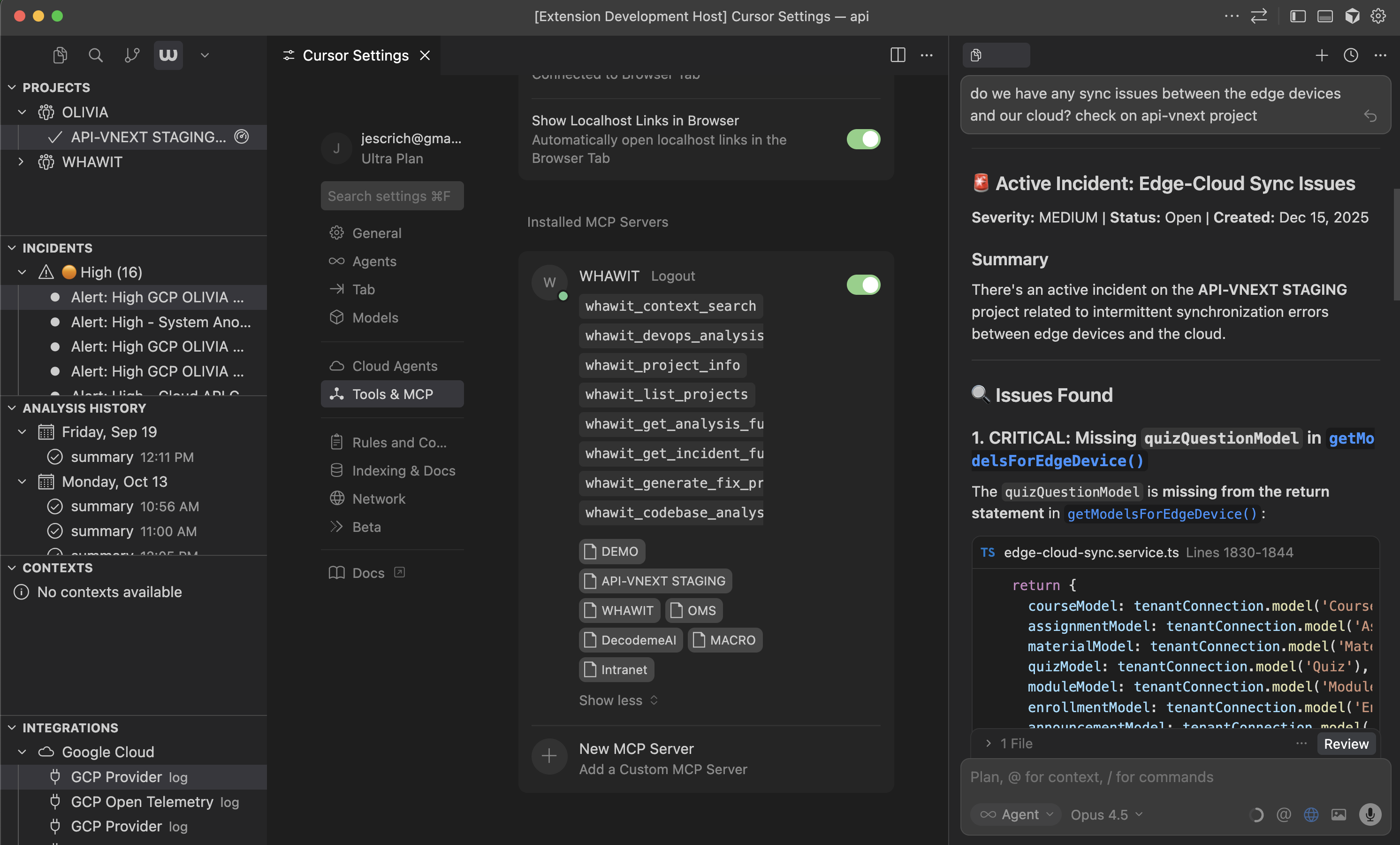
Whawit Analysis History view

Analysis details with root causes and recommendations

Contexts

Lists the project’s knowledge base contexts, including:
  • Repository documentation
  • Architecture overviews
  • User-defined technical context
These contexts power the semantic search and AI assistance features.

Integrations

Shows connected observability providers:
  • Datadog
  • AWS CloudWatch
  • New Relic
  • Google Cloud
  • Sentry
  • And more

Commands Reference

CommandDescription
Whawit: LoginAuthenticate with your Whawit account
Whawit: LogoutSign out and clear stored credentials
Whawit: Open Radar ChatOpen the Radar chat panel for DevOps Q&A
Whawit: Select ProjectManually select a Whawit project
Whawit: Search ContextSearch the project knowledge base
Whawit: Manage IntegrationsOpen the integrations management panel
Whawit: Analyze Current WorkspaceTrigger an analysis of your current workspace
Whawit: Refresh ProjectsRefresh the projects list
Whawit: Refresh HistoryRefresh the analysis history
Whawit: Refresh IncidentsRefresh the incidents list
Whawit: Open Web AppOpen the Whawit web app in an embedded browser
Whawit: Send to Copilot for FixSend analysis to GitHub Copilot with fix instructions
Whawit: Copy as AI PromptCopy analysis as a formatted prompt for AI assistants

Configuration

Configure the extension through VS Code settings (Ctrl+, or Cmd+,):
SettingDescriptionDefault
whawit.autoDetectProjectAuto-detect project from Git remotetrue
whawit.showStatusBarShow Whawit status in the status bartrue
whawit.openAnalysisInWhere to open analysis results (embedded or external)embedded

AI Assistant Settings

SettingDescriptionDefault
whawit.aiAssistant.preferredFormatFormat when copying for AI (markdown, json, both)markdown
whawit.aiAssistant.includeRawLogsInclude raw log events in AI promptsfalse
whawit.aiAssistant.maxContextLengthMaximum context length in characters10000

Project Auto-Detection

The extension automatically detects your Whawit project by matching Git remotes. The detection process:
  1. Reads .git/config from your workspace folders
  2. Extracts remote URLs (both HTTPS and SSH formats)
  3. Normalizes URLs for comparison
  4. Matches against repositories connected to your Whawit projects via GitHub integration
Auto-detection requires a GitHub integration configured in Whawit with access to your repository.

Troubleshooting

  1. Ensure your repository is connected via a GitHub integration in Whawit
  2. Verify the Git remote URL matches the repository URL in Whawit
  3. Try running Whawit: Select Project manually
  4. Check the Output panel (View > Output > Whawit) for error messages
  1. Run Whawit: Logout to clear stored credentials
  2. Run Whawit: Login to re-authenticate
  1. Verify you have a project selected (check the status bar)
  2. Ensure the project has at least one log provider connected
  3. Check your network connection to api.whawit.ai

Next Steps