

This page is about WHAWIT as an MCP server for your AI assistants. For the other
direction — connecting your organization’s MCP server so WHAWIT can resolve
incidents by acting on your internal systems — see
MCP Actions.
Overview
MCP is an open protocol that allows AI assistants to interact with external tools and data sources. The Whawit MCP server exposes thirteen tools covering:- Project discovery and project information
- Incidents, analyses, evidence and log excerpts already on record
- On-demand analysis of a project’s errors, latency and health
- AI incident copilot: root cause, similar incidents, postmortem draft, stakeholder summary — reading the stored results and generating them are separate tools
- Operational Memory search (runbooks, docs, learnings, architecture notes)
- Fix context and AI-ready fix prompts for the code behind an incident
- Ticket creation, synced to Jira
Hosted Server
Whawit provides a hosted MCP server that requires no local installation:Quick Setup
- Claude
- Claude Code
- Cursor
- Other clients
In Claude (web or desktop app), open Settings → Connectors and choose Add custom connector:
- Name:
Whawit - Remote MCP server URL:
https://mcp.whawit.ai/mcp - Add it, then click Connect and sign in to Whawit in the browser window that opens.
Signing In
There is nothing to copy into your configuration. The URL is the whole setup. When your client first calls the server, Whawit answers401 with a
WWW-Authenticate challenge pointing at its OAuth metadata. Your client reads that,
opens your browser, and you sign in to Whawit the way you normally would. The client
stores the resulting token and refreshes it on its own.
You are connected when your client lists the Whawit tools — try asking it to
“list my Whawit projects”.
Available Tools
The MCP server exposes thirteen tools. Each one carries the MCP tool annotations (title, readOnlyHint, destructiveHint, idempotentHint, openWorldHint) that
clients use to decide when to ask you before running it. Reading and writing are
separate tools: ten tools only read from Whawit and run without a confirmation prompt
in Claude; three create something on the Whawit side (an analysis, an AI deliverable,
a queued ticket) and Claude asks before running them. None of the tools modifies or
deletes existing data.
Annotations at a glance
destructiveHint: false on the three write tools means additive only: they create a
new record and never change or remove an existing one. openWorldHint: true on
whawit_create_ticket reflects that the ticket leaves Whawit for Jira.
whawit_list_projects
List the Whawit projects your account can access, with their URNs, names and aliases (monitor and integration names). This is how a project you refer to by name (e.g. “acme”) resolves to the URN the other tools take. This tool takes no parameters. Read-only.whawit_project_info
Get information about a project: its connected integrations, monitors, health status and linked repositories.string
required
The project URN to get info for.
whawit_devops_analysis
Read-only view of a project’s errors, incidents, failures, latency and health from what Whawit already has on record: the project’s open incidents (with their AI triage) and its most recent analyses, continuously produced from your connected observability providers. Nothing is run or stored. When nothing is on record yet, the response says so and nameswhawit_run_analysis.
string
required
The question being investigated (e.g., “redis errors”, “API failures”, “high latency”).
string
required
The project URN to look at.
string
default:"concise"
Output verbosity:
concise or detailed.What is failing in project urn:project:abc123 right now?
whawit_run_analysis
Run a new on-demand analysis of a project’s logs for a specific question and an optional time range, using one of the project’s connected log providers. The result (summary, evidence, business impact) is returned when the analysis completes within about 75 seconds; otherwise the analysis URN is returned forwhawit_get_analysis_full.
string
required
What to analyze (e.g., “redis connection errors”, “5xx on /checkout”).
string
required
The project URN to analyze.
string
Log-provider integration URN to analyze. Needed only when the project has several log
providers — the response lists them when a choice is required.
string
Time range start (e.g.,
15m, 1h, 24h). Omit to let Whawit infer the window
from the query text.string
Time range end (ISO date or
now); only meaningful together with from.string
default:"concise"
Output verbosity:
concise or detailed.Check for errors in the last 15 minutes in project urn:project:abc123
whawit_get_incident_full
Get the full details of an incident (triage, timeline, Jira/Opsgenie references) together with its correlated analysis when one exists.string
required
The project URN to fetch incidents from.
string
Specific incident URN to fetch.
string
Filter by severity:
critical, high, medium, low. Gets the first matching open incident.Include the correlated analysis if available.
whawit_get_analysis_full
Get the complete data of an analysis as formatted markdown and/or the full JSON payload: summary, evidence, business impact and log excerpts.string
required
The URN of the analysis to fetch (e.g.,
urn:history:abc123).string
default:"both"
Output format:
markdown, json, or both.boolean
default:"false"
Include raw log events in output.
number
default:"20000"
Maximum output length in characters.
whawit_incident_copilot
Read-only: returns the AI deliverables Whawit has already stored for an incident — probable root cause with evidence, similar past incidents and how they were resolved, a non-technical status update, or the postmortem. Nothing is generated; when no result of that kind exists yet, the response says so and nameswhawit_incident_copilot_generate.
string
required
The incident URN.
string
required
root-cause, similar, postmortem or stakeholder-summary.whawit_incident_copilot_generate
Generate an AI deliverable for an incident on the Whawit side and store it on the incident: probable root cause with evidence (root-cause), similar past incidents
(similar), a non-technical status update for a given audience
(stakeholder-summary), or a postmortem draft (postmortem). Generation takes 1–2
minutes. Without regenerate, the stored deliverable is returned when one already
exists.
string
required
The incident URN.
string
required
root-cause, similar, postmortem or stakeholder-summary.string
default:"exec"
Only for
stakeholder-summary: exec, customer or technical.boolean
default:"false"
Generate a new deliverable even when one is already stored (
root-cause, similar,
stakeholder-summary; slower). The previous ones are kept.whawit_knowledge_search
Search the team’s Operational Memory (runbooks, docs, incident learnings, procedures, architecture notes) for a project. Every hit carries a citation URN.string
required
The search query.
string
required
The project URN to search in (e.g.,
urn:project:abc123).array
Optional filter:
runbook, doc, convention, architecture, investigation-guide, learning, procedure.boolean
default:"false"
Include draft (unapproved) knowledge items.
Search for how authentication works in project urn:project:abc123
whawit_get_fix_context
Everything needed to fix an incident’s underlying code locally: the correlated analysis with evidence and log excerpts, the engineering actions, prior automated fix runs, and the project’s GitHub repositories (clone URL and default branch).string
Incident URN to build the fix context from (resolves its correlated analysis).
string
Analysis (history) URN to build the fix context from directly.
whawit_generate_fix_prompt
Generate an AI-ready prompt for fixing the issues identified in an analysis.string
required
The URN of the analysis to generate a fix prompt for.
string
default:"all"
Focus area:
code, infrastructure, or all.whawit_codebase_analysis_prompt
Generate a prompt scaffold for analyzing a codebase: project overview, recent analyses and generic exploration instructions. It does not look up architecture or conventions — usewhawit_knowledge_search for those.
string
required
The project URN to analyze.
whawit_create_ticket
Queue the creation of a tracking ticket (synced to Jira when a Jira integration is connected) from an analysis or incident.string
Analysis (history) URN to create the ticket from.
string
Incident URN — its correlated analysis will be used.
string
Optional instructions to steer the ticket content.
historyUrn or incidentUrn is required. Creates data: the call is
asynchronous — the response confirms the ticket was enqueued and does not include a
ticket ID.
MCP Resources
The server also exposes projects as MCP resources:Authentication
The server authenticates you with OAuth 2.1, discovered automatically. You add a URL; your client does the rest. An unauthenticated request is answered with an RFC 9728 challenge that points at the metadata for the endpoint you connected to:Bearer token. Every MCP
client that implements the authorization spec — Claude, Cursor, VS Code, Windsurf —
does this without being told.
Headless environments
Headless environments
A CI job or a script has no browser to open. For those, the server also accepts an
X-API-Key header, which you can generate in the Whawit web app under
Settings > User Settings. Prefer OAuth anywhere a person is present: a key is
something to store, rotate and eventually leak.Transport Protocols
Both endpoints support the full set of tools and resources.
Example Workflows
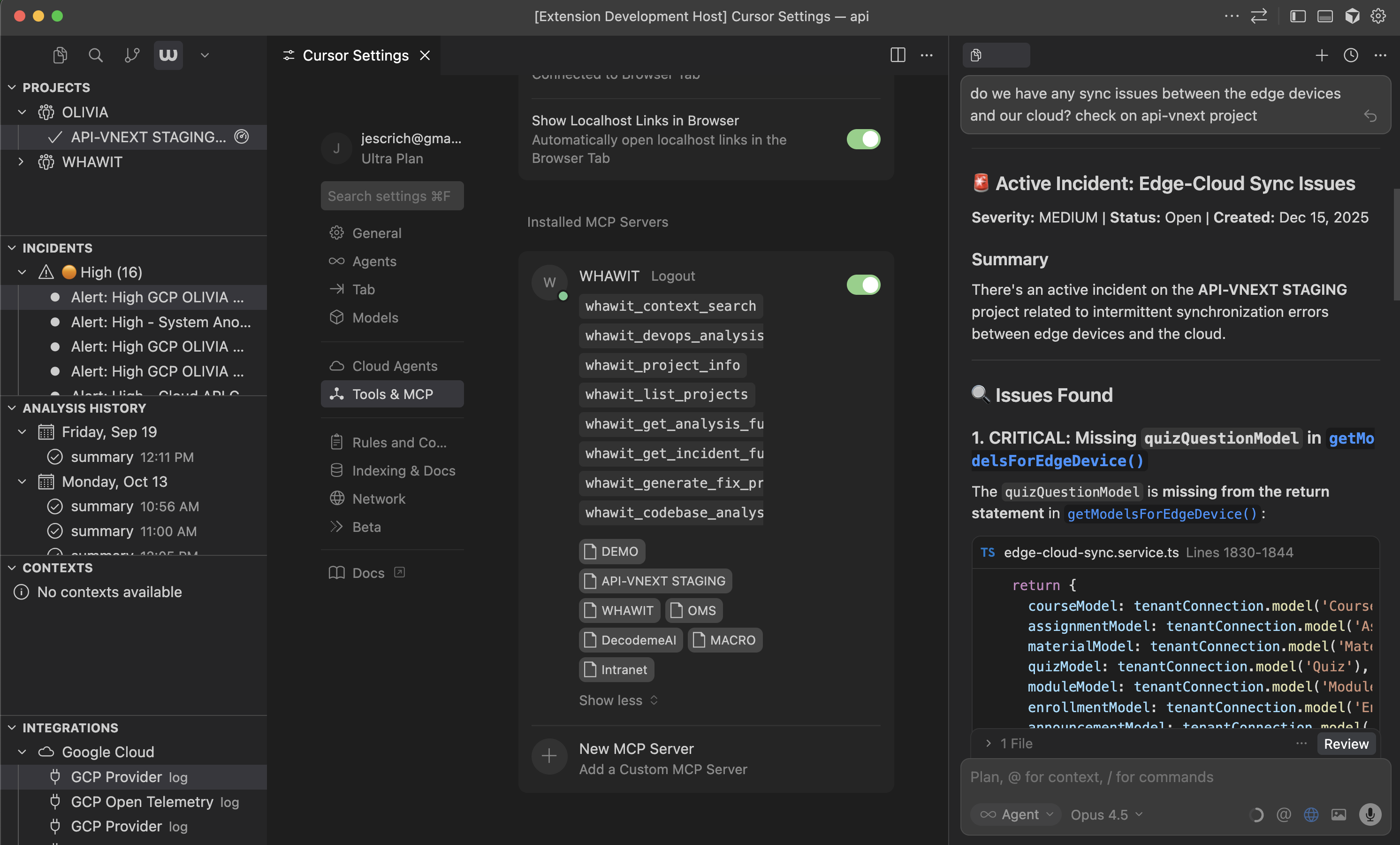
Using Whawit MCP tools in Cursor to analyze incidents
Investigating an Incident
-
Ask your assistant to list your projects:
“List my Whawit projects”
-
Get incident details:
“Get the latest critical incident from the acme project”
-
Ask the copilot for a root cause (the stored result is returned when one exists;
otherwise Claude offers to generate it):
“What is the probable root cause of that incident, with evidence?”
-
Pull the fix context and let the assistant work on the code:
“Get the fix context for that incident and propose a fix”
-
Track it:
“Create a ticket for it”
Searching Operational Memory
“Search the project knowledge base for how the payment processing flow works in urn:project:payments”
Running an On-Demand Analysis
“Run an analysis of Redis connection errors in the last 30 minutes for urn:project:backend”
Troubleshooting
Tools not appearing in your client
Tools not appearing in your client
- Check the URL ends in
/mcp(or/ssefor a legacy SSE client) - Verify your MCP configuration file syntax is valid JSON, if your client uses one
- Restart the client after configuration changes
- Ensure
mcp.whawit.aiis reachable from your network
Authentication errors
Authentication errors
- Check that your configuration has no
headersblock — an oldX-API-Keyentry left in place takes precedence over OAuth and will fail once that key is revoked. - Sign out and reconnect so the client runs the browser flow again; tokens expire.
- Confirm the account you signed in with has access to the project you are asking about — try “list my Whawit projects” to see what it can reach.
Project not found errors
Project not found errors
- Verify the project URN format is correct (
urn:project:...) - Ensure you have access to the project in Whawit
- Run
whawit_list_projectsto see available projects
Next Steps
VS Code Extension
Install the Whawit extension for integrated observability in your editor.
GitHub Copilot
Use @whawit in GitHub Copilot Chat for AI-assisted analysis.